> This page is for version v1 (default).
> For other versions, use one of these documentation indexes:
> - v1 (default): https://developers.truemed.com/v-1/llms.txt
> For clean Markdown of any page, append .md to the page URL.
> For a complete documentation index, see https://developers.truemed.com/llms.txt.
> For AI client integration (Claude Code, Cursor, etc.), connect to the MCP server at https://developers.truemed.com/_mcp/server.
# Product page widget
> Install and customize the Truemed HSA/FSA eligibility widget on your Shopify product pages.
The product page (PDP) widget is the highest-impact promotion you can add. It tells customers a product may qualify for HSA/FSA spending at the moment they're deciding whether to buy.
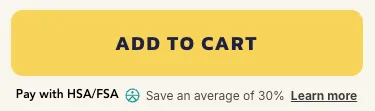
Install it after you've activated the payment app. See the [setup guide](/guides/setup/shopify/setup-guide) if you haven't done that yet.
## Installation
1. Get your **Public Qualification ID**. In the [Truemed dashboard](https://app.truemed.com), click **My Account** in the top right, select **Settings**, and open the **Public ID** tab to view and copy it
2. In Shopify, go to **Online Store > Themes > Customize**
3. Open your product page template
4. Add a **Custom Liquid** block where you want the widget, typically near the price or the "Add to Cart" button
5. Paste the following, replacing `YOUR_PUBLIC_QUALIFICATION_ID`:
```html
```
> **Note**
>
> The Truemed payment app works with all Shopify themes, and changing your theme will not affect the payment integration. If you switch themes, you may need to re-add this widget to your new template.
## Dark mode
For pages with dark backgrounds, add the `dark-mode` attribute:
```html
```
## Show the widget only on eligible products
Use Shopify product tags to control where the widget appears:
* Tag products as `truemed-eligible` and add `shopify-tags="display-if-eligible"` to the div
* Or tag ineligible products as `truemed-ineligible` and add `shopify-tags="display-unless-ineligible"`
```html
```
Tags are yours to maintain, so they can drift from the eligibility Truemed assigns. Check the Products tab of your [Truemed dashboard](https://app.truemed.com) for the current status of any product. See [Eligibility](/guides/get-started/eligibility-and-qualifying-businesses) for how categories are determined.
> **Tip**
>
> If you're tagging by hand today, Truemed also writes each variant's eligibility status directly to your store, which you can use to build a collection that updates itself. See [HSA/FSA eligible collections](/marketing/widgets/eligible-product-collections-and-badges).
## Style customizations
Where you put the CSS determines whether it needs `` around them. |
Putting the CSS in the same Custom Liquid block as the widget keeps everything together:
```html
```
> **Warning**
>
> Setting `font-size` or `color` in the div's `style` attribute has **no effect** on the widget. It renders its own elements with their own font size and color, which win over anything inherited from the containing div. Older versions of this snippet included `style="font-size: 14px;"` — it was doing nothing, and it's safe to remove. Use the CSS overrides below instead.
### Text size
Target the two text elements directly. `!important` is required, because the widget ships its own stylesheet.
```css
.truemed-entry-text,
.truemed-entry-link {
font-size: 14px !important;
}
```
`.truemed-entry-text` covers "HSA/FSA eligible" and "Save an average of 30%". `.truemed-entry-link` is the "Learn more" button.
To scale the logo alongside the text, use the `icon-height` attribute on the div. That one does work, since the widget reads it directly:
```html
```
### Font family, weight, and style
The widget loads and applies **Inter**, so your theme's font is not picked up automatically. Use `inherit` to adopt whatever font surrounds the widget:
```css
.truemed-entry-box,
.truemed-entry-box * {
font-family: inherit !important;
}
```
Or name a font and set weight or style at the same time:
```css
.truemed-entry-box,
.truemed-entry-box * {
font-family: 'Your Theme Font', sans-serif !important;
font-style: normal !important;
}
```
Weights are set per element, so override them individually:
| Element | Default | Selector |
| ------------------ | ------- | -------------------------- |
| "HSA/FSA eligible" | 700 | `.truemed-entry-text-bold` |
| "Learn more" link | 600 | `.truemed-entry-link` |
> **Note**
>
> These rules style the line on your product page. The modal that opens when a customer clicks "Learn more" uses Truemed's own typography and is not affected.
### Colors and spacing
| Customization | CSS |
| ------------------------------- | ------------------------------------------------------------------ |
| Change "Learn more" link color | `.truemed-instructions-open { color: #7a7a7a !important; }` |
| Change body text color | `.truemed-entry-text { color: #7a7a7a !important; }` |
| Remove the link underline | `.truemed-entry-link { text-decoration-line: none !important; }` |
| Adjust the gap between elements | `.truemed-entry-box { gap: 4px !important; }` |
| Add spacing above/below | Add `margin-top` or `margin-bottom` to the div's `style` attribute |
## Related
* [Promotion resources](/marketing/website-readiness/overview) — snippets and best practices for promoting HSA/FSA across your site
* [Subscriptions and reimbursement setup](/guides/setup/shopify/subscriptions) — the thank you page widget and post-purchase flow