> This page is for version v1 (default).
> For other versions, use one of these documentation indexes:
> - v1 (default): https://developers.truemed.com/v-1/llms.txt
> For clean Markdown of any page, append .md to the page URL.
> For a complete documentation index, see https://developers.truemed.com/llms.txt.
> For AI client integration (Claude Code, Cursor, etc.), connect to the MCP server at https://developers.truemed.com/_mcp/server.
# Product page widget
> How to install and customize the Truemed HSA/FSA eligibility widget on your Shopify product pages.
## Overview
This widget educates customers about HSA/FSA eligibility and indicates that they might qualify for HSA/FSA spending or reimbursement with their purchase.
It should be installed on your product pages, typically near the price or "Add to Cart" button:
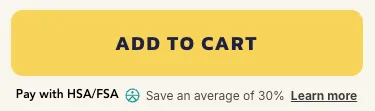
*Your widget may look different — we are always working on improvements with the goal of increasing conversion.*
---
## Installation
1. Reach out to [merchants@truemed.com](mailto:merchants@truemed.com) if you do not know your **Public Qualification ID**.
2. In Shopify, open the template where you'd like to add the widget. In the left-hand editor, select the section where you want the widget to appear, then click **"Add block"** to insert it.
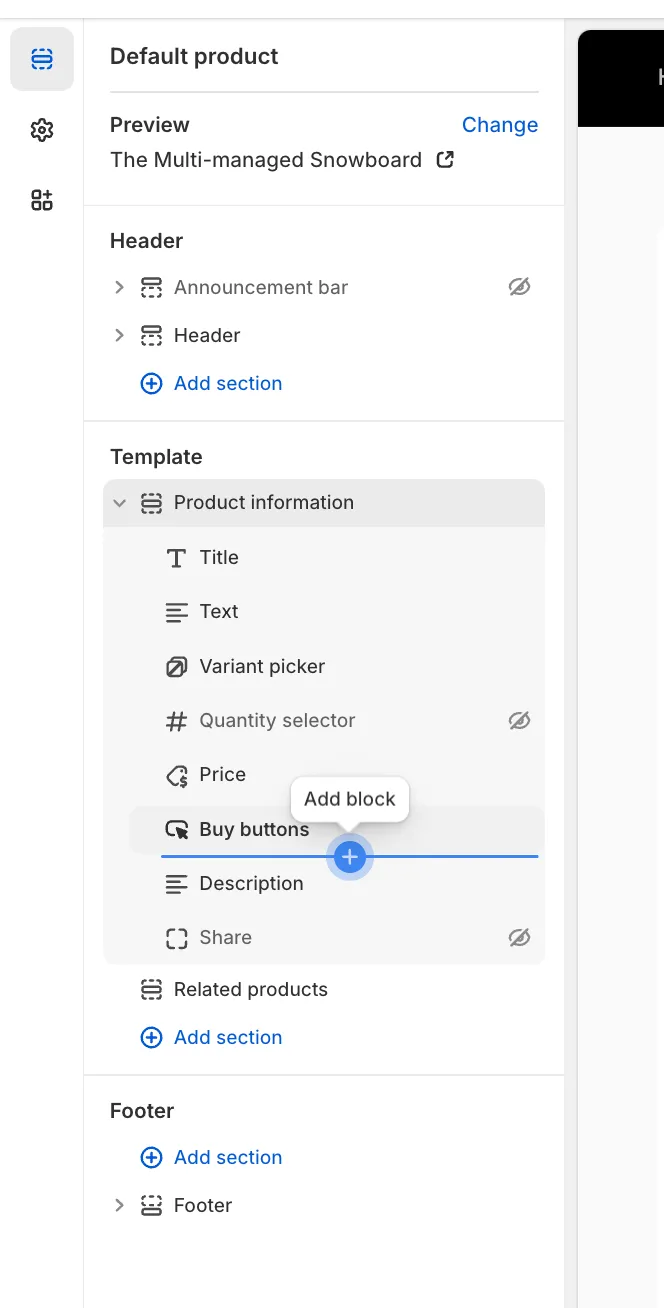
3. Click **"Add block"**, then insert these 2 lines of HTML on your site, typically near the "Buy" or "Add to Cart" buttons. Make sure to replace `YOUR_PUBLIC_QUALIFICATION_ID` with the ID from Step 1:
```html
```
4. Adjust styles on the div to fit your page. For example:
```html
style="font-size: 16px; margin-top: 7px; margin-bottom: 10px; font-family: Poppins, sans-serif;"
```
---
## Dark background implementation
For pages with black or dark backgrounds, add the `dark-mode` attribute to enable a white Truemed logo. Update the text color within the `style` property:
```html
```
---
## Display on certain products only (Shopify)
> **Tip**
>
> To enable this feature, start by tagging your products in your Shopify dashboard. Choose `truemed-eligible` if your store sells fewer eligible products than ineligible. Otherwise, choose `truemed-ineligible` — this is a great option if you have many eligible products but also sell gift cards or branded merch.
**To display only on products tagged `truemed-eligible`:**
```html
```
**To display on all products except those tagged `truemed-ineligible`:**
```html
```
---
## Additional customizations
**1. Change the "Learn how" link color:**
```css
```
**2. Prevent the Truemed logo from oversizing:**
```css
```
**3. Keep the Truemed logo inline with text:**
```css
```
**4. Add space above or below the widget:**
Add `margin-top: #px;` or `margin-bottom: #px;` to the `style` attribute on the div.
---
## FAQs
**Does this work for Shopify templates?**
Yes. From the Shopify admin panel, navigate to **Online Store > Themes > Actions > Edit Code** and look for your product template (usually called something like `main-product.liquid`). Alternatively, send this page along with your Public Qualification ID to your Shopify developers.
**Does this widget work for both Payment and Reimbursement integrations?**
Yes. Based on your Public Qualification ID, we'll load the product page (PDP) widget custom-tailored to your merchant profile.
---
## Need help?
Contact [merchants@truemed.com](mailto:merchants@truemed.com) for any technical questions about the product page widget.