

Checkout widgets
Bring the HSA/FSA message back into view at checkout, when the shopper is deciding how to pay.
Most stores put their HSA/FSA message on the product page and nowhere else. That is a long way from the moment a shopper picks a payment method. The Truemed checkout widgets close that gap with drag-and-drop blocks that carry HSA/FSA messaging into your Shopify checkout.
Each widget reads the eligibility that Truemed syncs onto your products, so it appears only on carts with items that may qualify. The copy adapts to your Truemed setup on its own — “pay with HSA/FSA” for payments stores, “get reimbursed” for reimbursement stores. There is nothing to write and nothing to configure.
These widgets ship inside the Truemed Extensions App. Install the app first. The blocks do not appear in your checkout editor until you do.
Before you start
The checkout widgets need a Shopify Plus plan. Shopify only lets Plus stores, and partner development stores, add blocks to the checkout page. On any other plan the app shows a Requires Shopify Plus badge, and you cannot add the widgets.
Your Shopify plan decides nothing else. Catalog sync, eligibility metafields, self-updating collections, the Thank You and Order Status reimbursement links, and the Cart Drawer widget when it ships all work on every plan.
The widgets are checkout extensions. Checkout Extensibility is Shopify’s framework for changing checkout with extensions instead of injected scripts. It replaces the Additional Scripts field, which Shopify is retiring: Plus stores had to migrate by August 2025, and every other store by August 2026.
Add them to your checkout
The app home page lists every widget as a tile with a preview. Each tile has an Add button that opens Shopify’s checkout editor for you, and the app tracks how many you have placed.
Start with the two recommended widgets
On the app home page, add the Product Badge and Subtle CTA widgets. The badge marks each item in the order summary that may qualify, and the one-line CTA above it tells shoppers the cart holds them. Together they carry the message without crowding your checkout.
Add the widget to your checkout
The Add button opens the checkout editor. In the Sections editor, click Add block and search for “Truemed”. Your widgets are grouped under Truemed Checkout Widgets.
A few things worth knowing:
- These widgets can also show in your Shop Pay checkout. Toggle Include block in Shop Pay on after adding.
- Each widget has a Display only for subscription orders toggle in the editor.
- Widgets belong to the checkout profile you edit. If you test in a draft profile, add them there first, then repeat on your published profile.
Just installed the Truemed Extensions App? Truemed syncs each SKU’s HSA/FSA eligibility back to you through the app, and the checkout widgets stay hidden from shoppers until that finishes. Pick your placements in the meantime, and once the eligibility sync is done, the widgets will start appearing on their own.
Available widgets
Widgets go in one of two checkout sections. Copy adapts to the shopper, so there is nothing to configure.
Payments
Reimbursements
Five widgets are available. Messaging guides shoppers to select Truemed as their payment method.
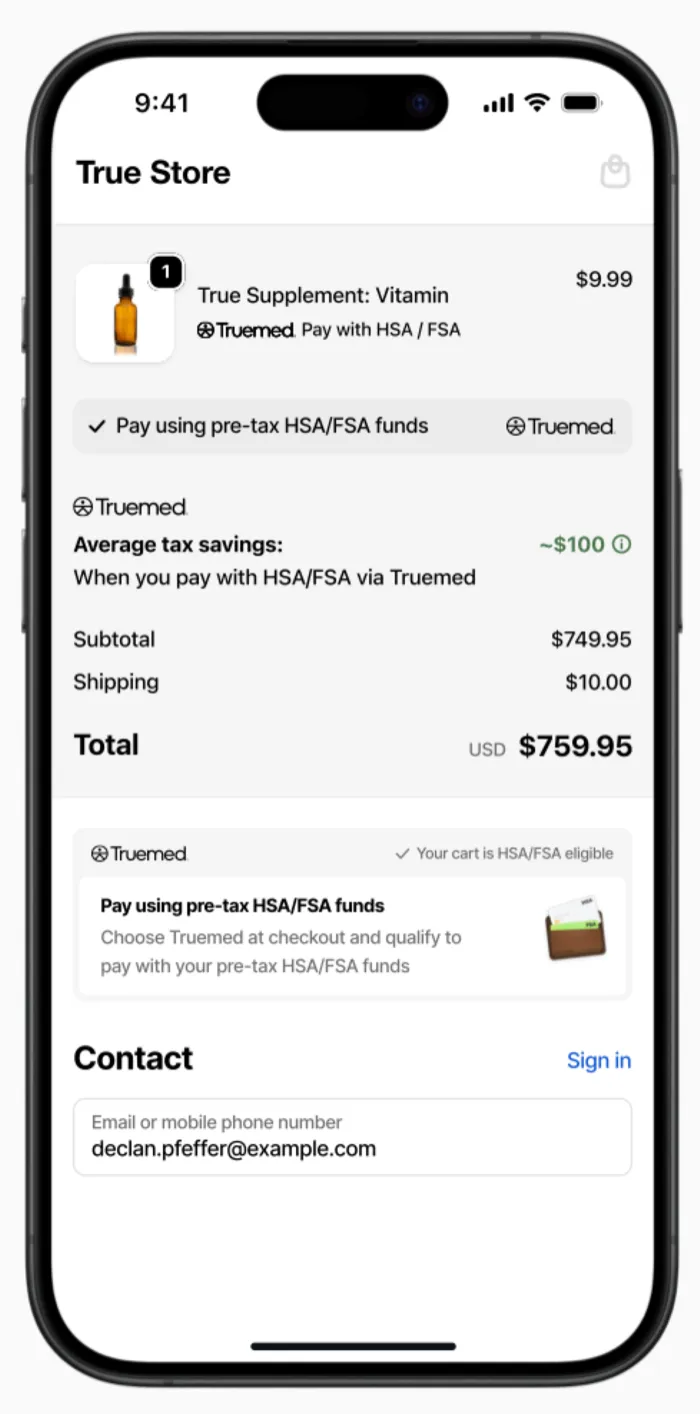
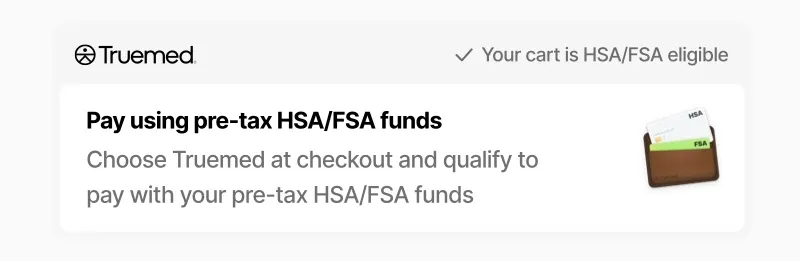
Checkout Banner
- A full Truemed callout that teaches shoppers how to pay with their HSA/FSA at checkout
- Sits at any of several positions in the checkout form — drag and drop to place it
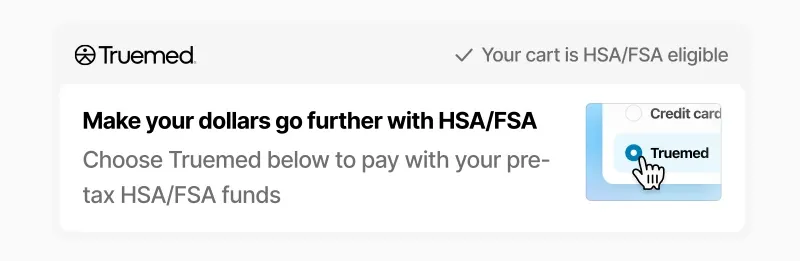
Payment Banner
- Sits directly above the payment method options, so shoppers see it at the moment of decision
- Prompts shoppers to pay with their health savings account
- Truemed Payments App installations only
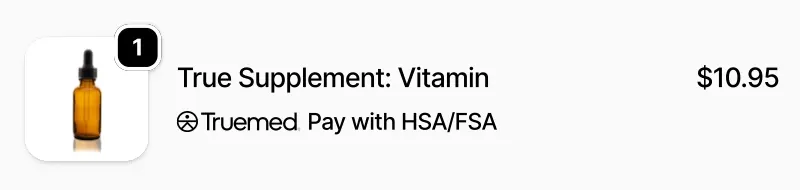
Product Badge — recommended
- Puts a “Pay with HSA/FSA” badge on each line item that may qualify
- Shows shoppers which products in their cart may qualify for HSA/FSA payment
Subtle CTA — recommended
- A compact banner that tells shoppers the cart holds items that may qualify: “Pay using pre-tax HSA/FSA funds”
- Goes in either the Main or Order summary section

Estimated Savings
- Shows the estimated tax savings — “Average tax savings: ~$100” — next to the order totals
- Puts a dollar figure on the tax-free savings at the moment shoppers review their total
- The savings figure is an estimate. Actual savings depend on the shopper’s tax rate. The widget carries the Truemed disclaimer behind its info icon. See truemed.com/disclosures.

Coming soon: Cart Drawer. A banner in your theme’s cart drawer that shows HSA/FSA eligibility before shoppers reach checkout. It will work on every Shopify plan.
Need help?
Reach out to your Customer Success representative or merchants@truemed.com.
Related
- Truemed Extensions App — Install the app that ships these widgets
- Product page widget — The HSA/FSA message earlier in the journey
- HSA/FSA eligible collections — Build a collection that maintains itself
- Subscription messaging — Checkout copy for subscription carts
- Testing — Place test orders without charging real funds