

Truemed Extensions App
The Truemed Extensions App is a native Shopify app that helps you grow HSA/FSA sales and shape the HSA/FSA shopping experience across your store. It keeps your catalog and its eligibility in sync with Truemed automatically, then uses that eligibility to power checkout widgets, self-updating collections, and post-purchase reimbursement links.
Install it from the public Shopify App Store. There is no code to write, and most merchants are set up in under 10 minutes.
The Truemed Extensions App is separate from the Truemed Payments App. If you accept HSA/FSA payments at checkout, install both. If you use the post-purchase reimbursement flow, the Truemed Extensions App is the only app you need.
Why install it
Turn HSA/FSA eligibility into a growth lever for your store. Shoppers who spend pre-tax health funds save an average of 30%, which lifts both conversion and average order value — but only when they know the option exists, understand what qualifies, and know what to do next.
Keep your HSA/FSA catalog up to date automatically. Your products and their eligibility stay in sync as your catalog changes. No more CSV uploads every time a SKU changes, and no qualifying product sitting unmarked because an update got missed. This is also the foundation the rest of the app runs on: Truemed writes each product’s eligibility back into your store as a metafield, and everything else reads from it — checkout widgets that appear only on carts that may qualify, collections that fill themselves, and badges that never go stale.
Help more customers discover and use their HSA/FSA dollars. Surface the right HSA/FSA message at the moments that matter, based on what is actually in the cart. Shoppers learn when they can use their funds and what they need to do next, without adding noise for everyone else. Most stores put that message on the product page alone, long before anyone is ready to buy.
Get up and running quickly, with no dev work. Choose where and how HSA/FSA messaging shows up using drag-and-drop blocks in Shopify’s own editor. Set up in minutes, and change it any time without touching a line of code.
Understand exactly what drives HSA/FSA sales. Analytics and A/B testing show you how shoppers respond to your HSA/FSA experience, so you can test changes, see what gets more customers to buy, and apply what works.
What applies to your store
Which parts of the app you set up depends on how you run Truemed. The app reads your setup from your Truemed account and shows only what fits, no need to manually configure these settings.
Your Shopify plan decides one thing only: the checkout widgets need Shopify Plus, because Shopify only lets Plus stores add blocks to the checkout page. Everything else works on every plan — catalog sync, eligibility metafields, self-updating collections, the Thank You and Order Status reimbursement links, and the Cart Drawer widget when it ships.
How to get started
Step 1: Install the Truemed Extensions App
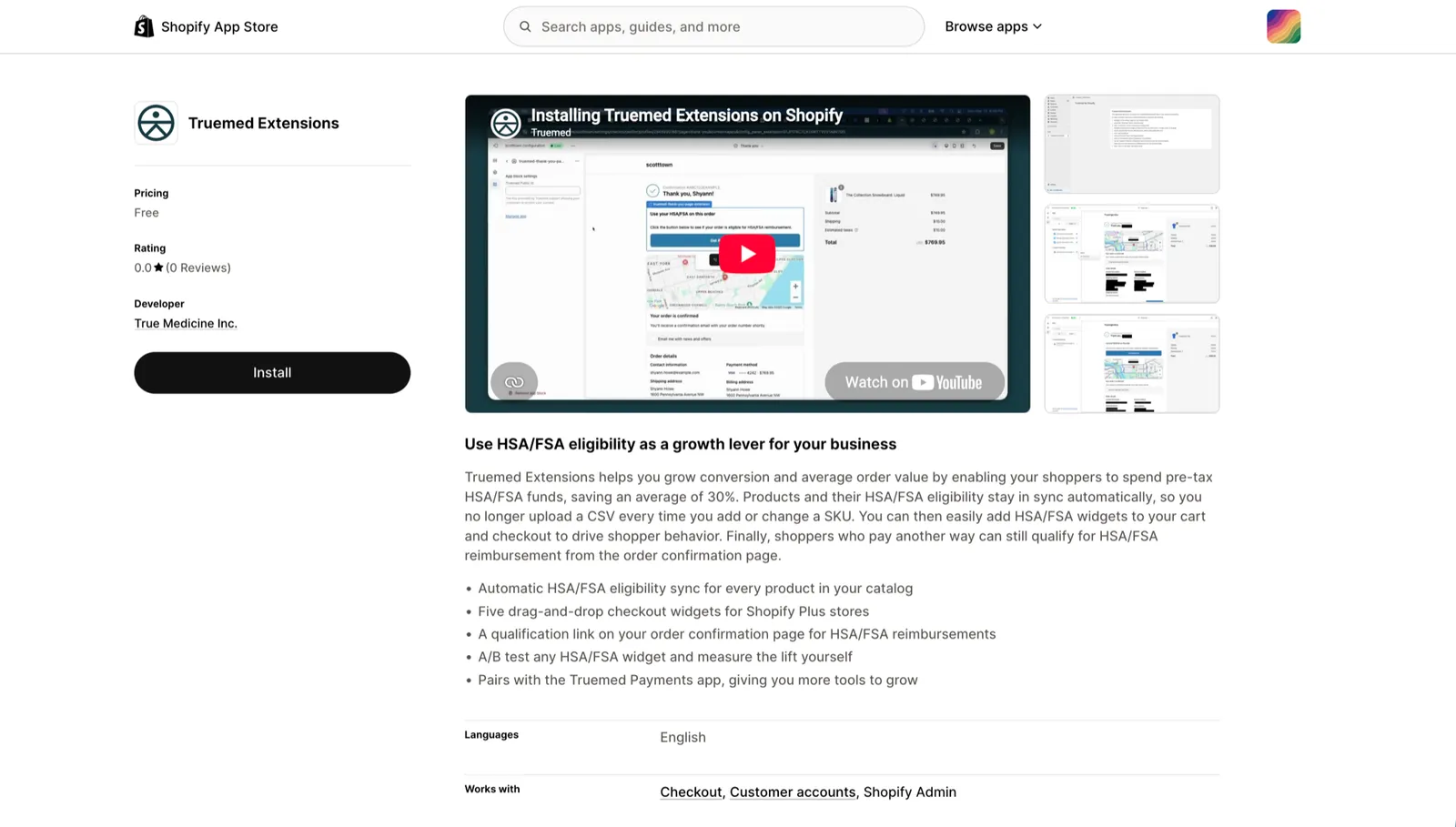
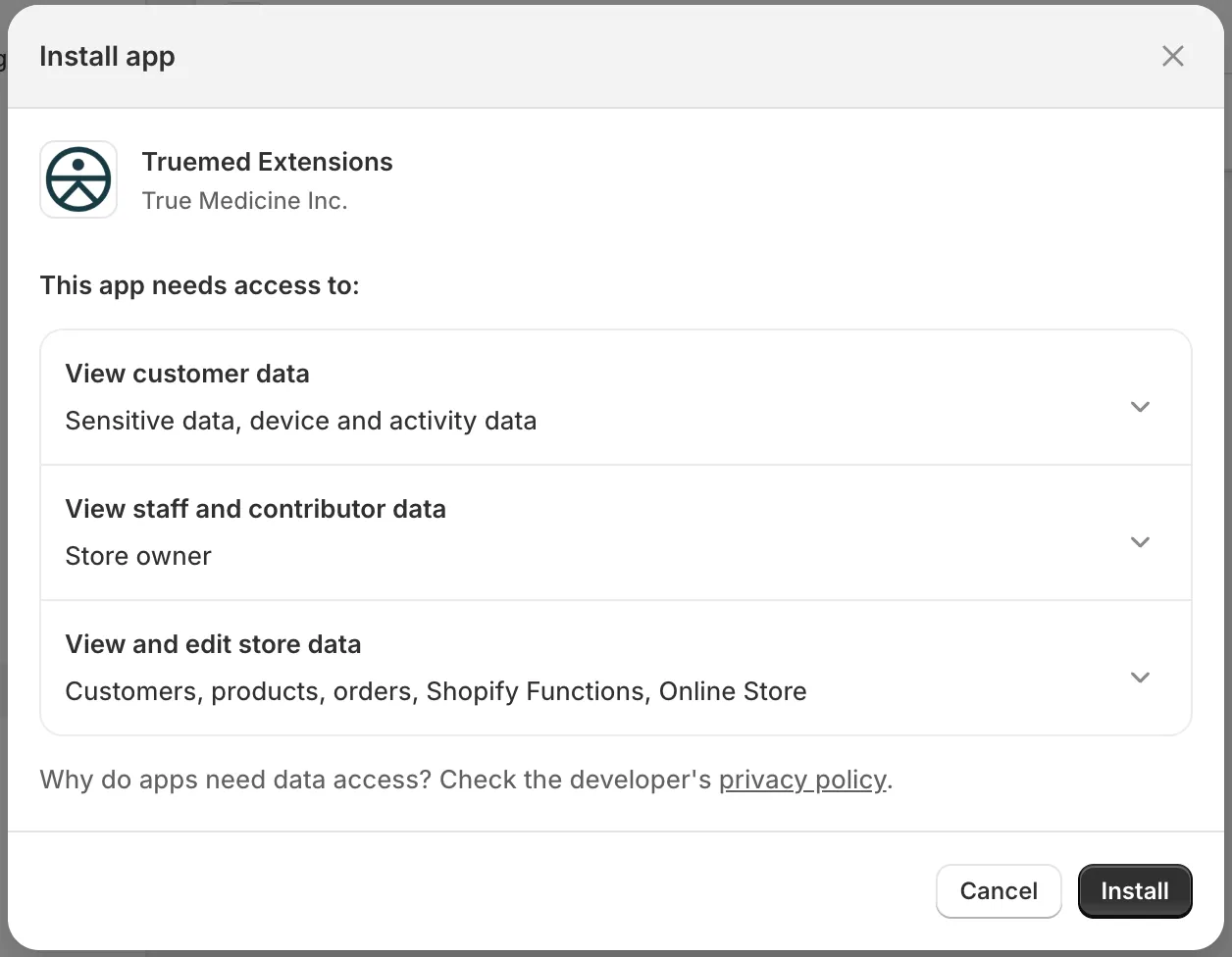
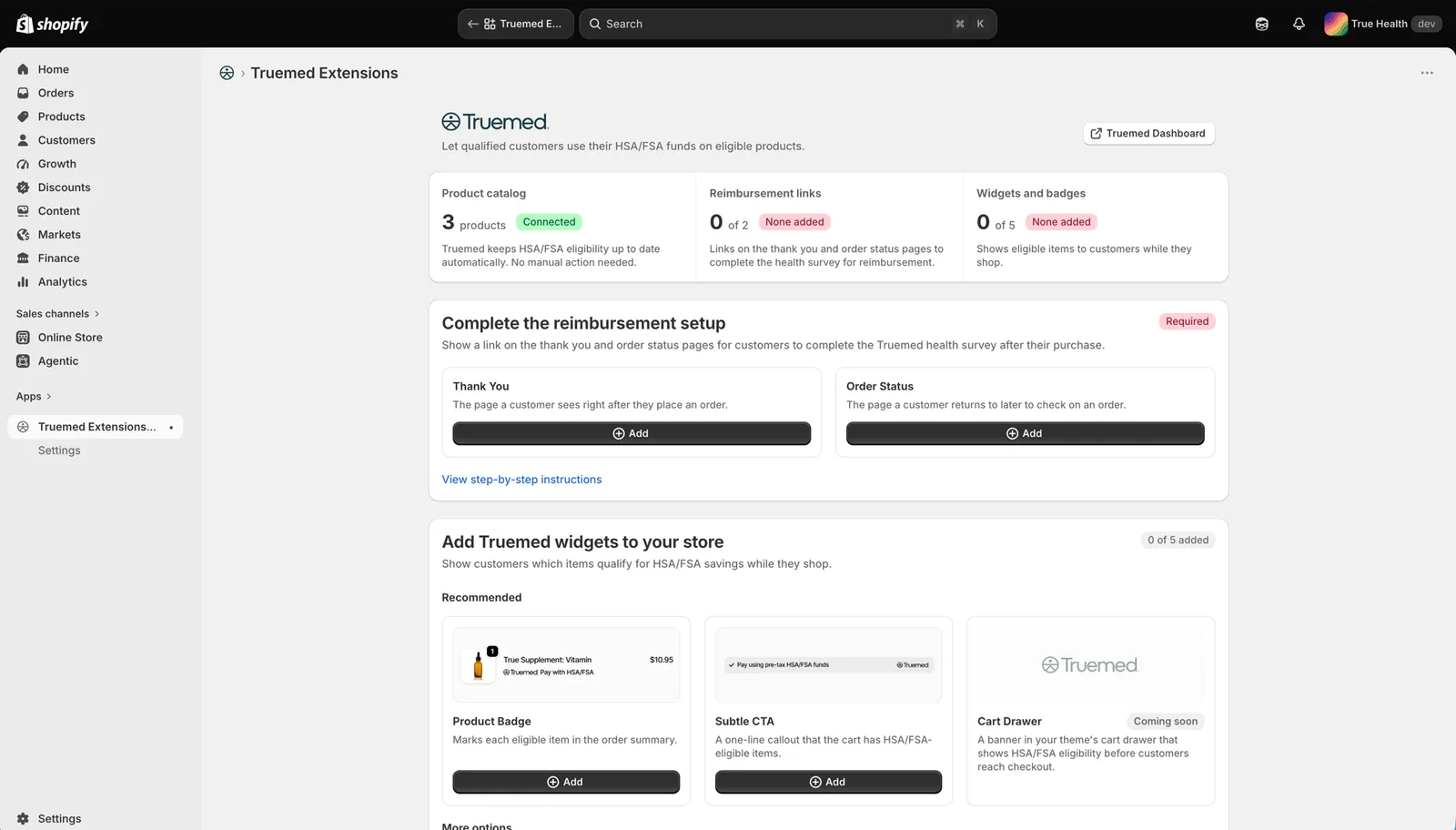
On install, the app creates the HSA/FSA Eligibility field on your variants and starts your first catalog sync. You do not need to enter a Public ID or Merchant Type in the Settings. Truemed syncs these automatically. The only setting you control there is the logo variant — pick light or dark to match your checkout background.
Step 2: Finish your setup
If you run Truemed through the Payments App alone, you are already set up and can skip to Step 3.
Reimbursement and hybrid merchants have one thing left to do: add the two reimbursement links. This works on every Shopify plan.
After a shopper buys, they need a link to the Truemed health survey to start their reimbursement. Without it, nobody gets reimbursed and you get no qualified orders.
Add both links. Neither one is optional.
- Thank You — the page a customer sees right after they place an order.
- Order Status — the page a customer returns to later to check on an order.
The thank you page is a single moment, and most shoppers are not ready to fill out a health survey the second they buy. The order status page is where they come back when they are ready.
Open the reimbursement setup card
The app home page shows a Complete the reimbursement setup card with a tile for each link. Click either tile to open the checkout editor on that page.
Add the Thank You widget
Click Add app block in the left sidebar and search for “Truemed”. Both links are grouped under Truemed Reimbursement Links. Add the Thank You widget on the Thank you page.
Each link has a Display only for Subscription Orders option in the editor.
Step 3: Add marketing widgets and badges
Now that the app is running, you can start to add marketing widgets and badges to help your customers see HSA/FSA eligibility as they shop.
Add checkout widgets
Requires Shopify Plus.
Most stores put their HSA/FSA message on the product page and nowhere else, long before anyone is ready to buy. The checkout widgets bring it back at the moment a shopper picks a payment method, and only on carts that may qualify. You get badges on those line items, a one-line CTA, a full callout, and an estimated-savings figure next to the order totals.
They are drag-and-drop blocks in Shopify’s own checkout editor, and the copy adapts to your Truemed setup on its own. No code snippets or anything to maintain.
See Checkout widgets for what each widget does and how to place it. We recommend the Product Badge and Subtle CTA widgets to start, but have several other options to choose from.
Build a self-updating collection
Works on every Shopify plan.
Truemed writes an eligibility status onto every product variant it recognizes. A Shopify collection can use that status as a condition, which gives you a self-maintaining collection of the products that may qualify — no hand-tagging, and no re-tagging when eligibility changes.
This is the fastest way to stand up an HSA/FSA landing page, a navigation entry, or a seasonal section of your site.
For the full walkthrough and the conditions to use, see HSA/FSA eligible collections. To mark those products in your storefront, see HSA/FSA eligible badges.
Uploaded your catalog by CSV a while ago? Your products may not have the eligibility metafield yet, so a collection may come back empty. Ask your Truemed contact to kick off a full eligibility sync for your store.
Verify your setup
- Open the app home page and confirm your product count shows under Product catalog
- Open a product variant in Shopify and confirm the HSA/FSA Eligibility field shows a value
- Reimbursement and hybrid merchants: confirm the app home page reads 2 of 2 reimbursement links
- Reimbursement and hybrid merchants: place a test order, then check the thank you page and the order status page for the qualification link
- If you added checkout widgets: start a test checkout with an item marked eligible and confirm each one appears
If a widget does not appear, your catalog sync is probably still running. After syncing, it may take 24-48 hours to determine item eligibility.
For a full walkthrough of placing test orders without charging real funds, see Testing.
Need help?
Reach out to your Customer Success representative or merchants@truemed.com.
Related
- Checkout widgets — What each checkout widget does and how to place it
- Truemed Payments App — Find, disable, or uninstall the Truemed Payments App
- Product page widget — The highest-impact promotion you can add
- HSA/FSA eligible collections — Build HSA/FSA collections from the synced eligibility metafields
- HSA/FSA eligible badges — Mark qualifying products in your storefront
- Subscriptions and reimbursements — Set up the post-purchase reimbursement flow
- Products and SKUs — How Truemed tracks eligibility per SKU