Manage the Truemed Payments App
This page covers where to find the Truemed Payments App settings and how to disable or uninstall it. For first-time installation and activation, see the setup guide.
Looking for the checkout widgets, the HSA/FSA Eligibility variant field, or the thank you page and order status page widgets? Those come from the Truemed Extensions App, which installs separately.
Fully uninstalling the Truemed Payments App may prevent your store from processing refunds for orders that used Truemed at checkout. Deactivate the app rather than uninstalling it unless you’re certain you won’t need to refund past Truemed orders.
Finding the Truemed Payments App settings page
In your Shopify dashboard, click Settings in the bottom left. Navigate to Payments, then scroll down to Additional payment methods. If you see Truemed listed there, click into it to find the settings page.
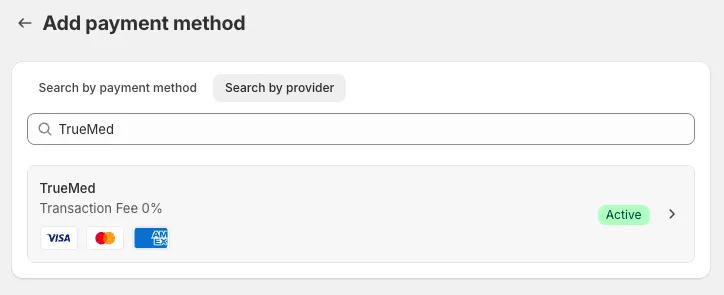
If you don’t see it, click Add payment method, toggle over to Search by provider, and type “Truemed”:
Disabling the Truemed Payments App
These instructions are only for stores that have already had an onboarding call with the Truemed team.
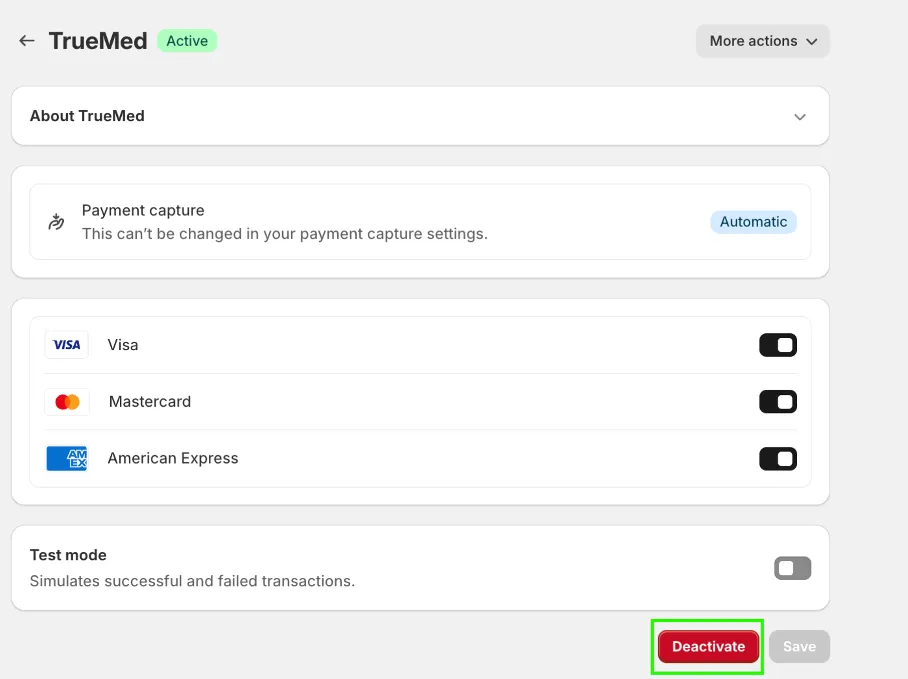
Find Truemed under Additional payment methods in your Shopify Payments settings, click into it, and click Deactivate. Truemed will no longer appear at checkout.
Uninstalling the Truemed Payments App
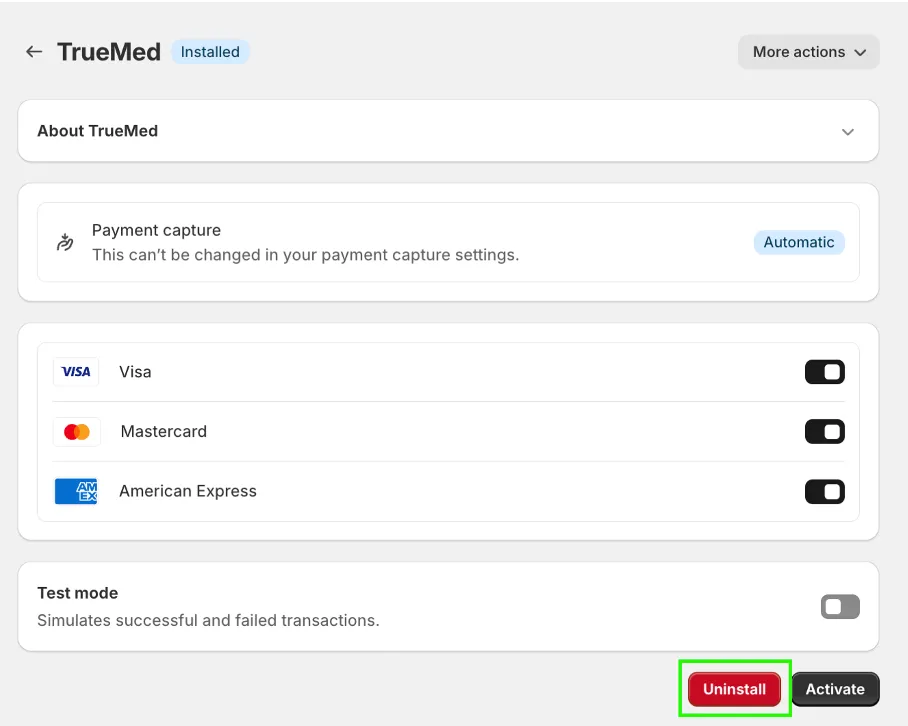
To uninstall the app, deactivate it first using the steps above. You’ll then see the uninstall option. Click Uninstall to fully remove Truemed from your store.
Re-read the warning at the top of this page before you do. Deactivating is almost always the better choice.