

Subscriptions and reimbursement setup
The Truemed Payments App does not support subscription purchases. If a customer’s cart contains a subscription item, Truemed will not appear as a payment option at checkout.
Subscription merchants use the post-purchase reimbursement flow instead. The customer checks out normally with a regular card, then qualifies afterward and submits their LMN and receipt to their HSA/FSA administrator. This page sets that flow up.
This applies to hybrid merchants too. If you sell both one-time and subscription products, the Truemed Payments App handles the one-time carts and this flow covers the rest.
Step 1: Add the reimbursement links
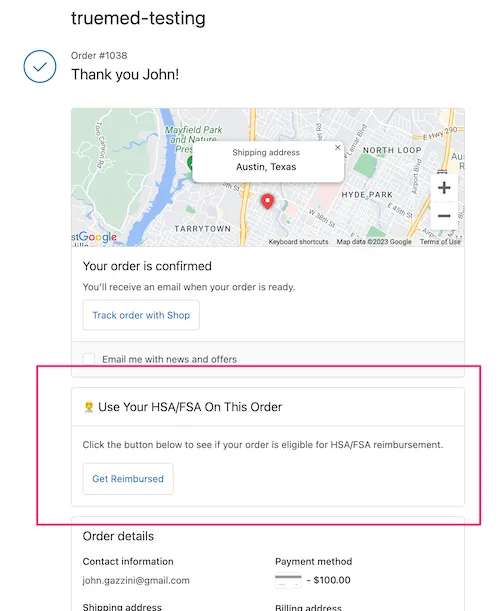
Add the qualification link to your post-purchase pages so customers can complete the reimbursement flow after they buy.
Add both links. Neither one is optional.
- Thank you page — the page a customer sees right after they place an order.
- Order status page — the page a customer returns to later to check on an order.
The thank you page is a single moment, and most shoppers are not ready to fill out a health survey the second they buy. The order status page is where they come back — often days later, when they are ready. Placing only the thank you link loses every one of those shoppers.
Option A: The Truemed Extensions App (recommended)
The Truemed Extensions App adds the qualification link to both pages through Shopify’s Checkout Extensibility, with no code to maintain. It works on every Shopify plan. See Truemed Extensions App for everything else it does.
What is Checkout Extensibility? Shopify’s framework for customizing checkout through extensions and Shopify Functions rather than injected scripts. It replaces the Additional Scripts field, which Shopify is retiring: Plus stores were required to migrate by August 2025, and other stores by August 2026.
Prefer to watch? Our engineer Lucas recorded a walkthrough of both links.
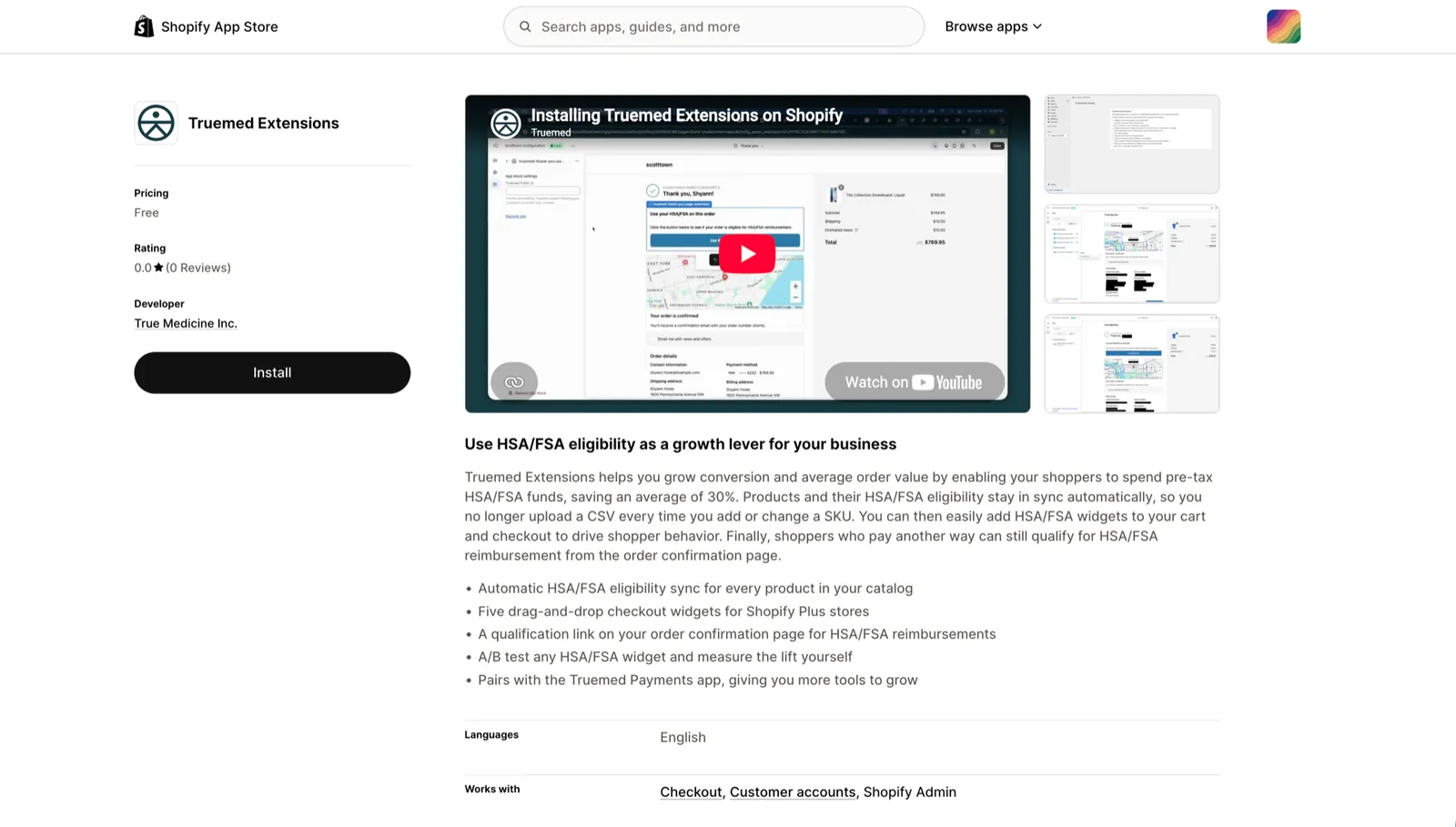
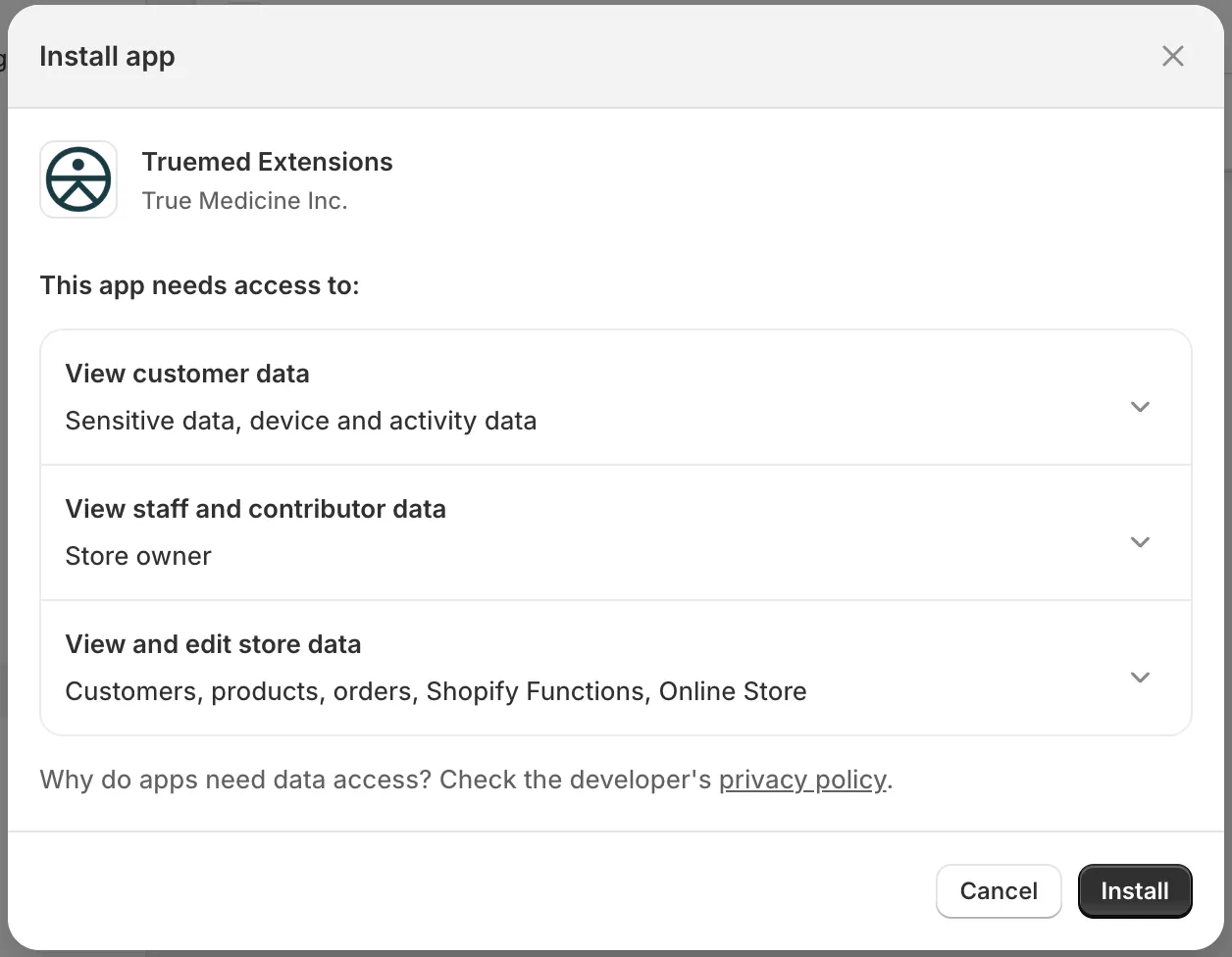
Open the reimbursement setup card
The app home page shows a Complete the reimbursement setup card with a tile for each link. Click either tile to open the checkout editor on that page.
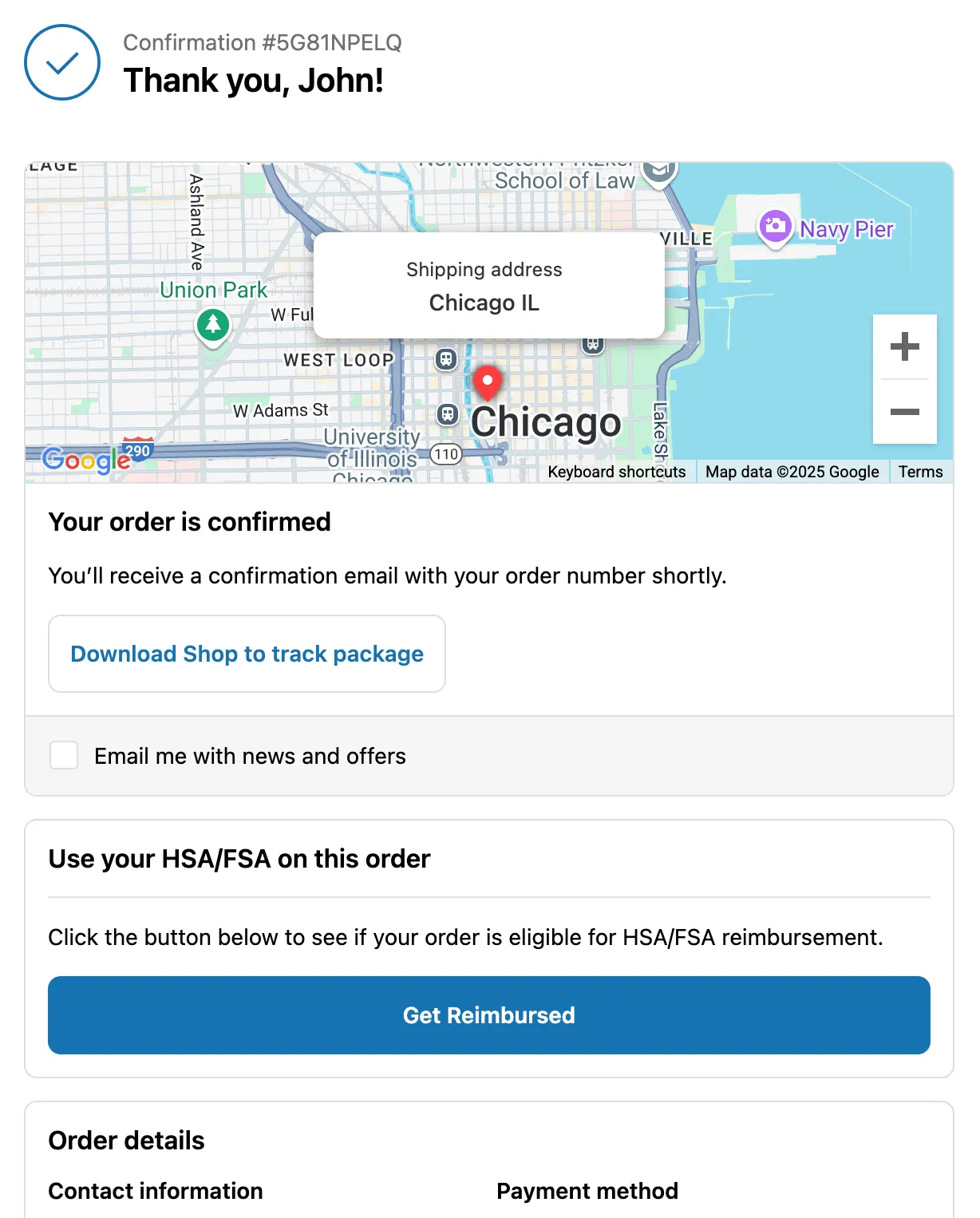
Add the Thank You block
Click Add app block in the left sidebar and search for “Truemed”. Add the Thank You block on the Thank you page. Both links are grouped under Truemed Reimbursement Links.
You do not need to enter a Public ID. Truemed sets it for you, and the app’s Settings page shows it read-only.
Each link has a Display only for Subscription Orders toggle in the checkout editor. Turn it on to show the link only on subscription orders.
Beyond that toggle, the app does not currently support customization. The qualification link appears on both post-purchase pages for all orders.
The Truemed Extensions App does more than power these links. It syncs your catalog to Truemed, writes each product’s eligibility into your store, and adds HSA/FSA widgets to your checkout. Worth installing even if you only need the post-purchase links. See Truemed Extensions App.
Option B: Additional scripts (legacy)
Shopify is retiring the Additional Scripts field. Use Option A unless your store cannot yet migrate to Checkout Extensibility.
- Find your Qualification Link at app.truemed.com
- Go to Settings > Checkout > Additional Scripts
- Paste the following in the “Order status page” section:
Step 2: Add the qualification link to your order confirmation email
Customers who miss the thank you page can still reach the flow from their email.
- In Shopify, go to Settings > Notifications > Order Confirmation
- Add the following to your email template, replacing
YOUR_QUALIFICATION_LINKwith your own:
The loop collects the SKUs on the order and passes them to Truemed as a comma-separated list, so the customer’s qualification survey is tailored to what they actually bought. The source parameter attributes the qualification back to this email.
Every variant needs a SKU assigned in Shopify for this to work. Variants without one contribute an empty value to the list. See Products and SKUs.
Verify
- Add a subscription item to your cart and confirm Truemed does not appear at checkout
- Place a test order and check your order confirmation page for the qualification link
- Confirm the qualification link appears in your order confirmation email
Related
- Subscription checkout messaging — optional banner explaining the reimbursement flow before customers pay